Lecture 10 — print() Statement & Comments
Lecture 10 — print() Statement & Comments⌗
Instructor: Laksh Budhrani
Review / Recap⌗
Turtle Commands You Already Know⌗
| Command | Meaning (Simple) |
|---|---|
p.forward() | Move forward |
p.backward() | Move backward |
p.left() | Turn left |
p.right() | Turn right |
p.penup() | Lift the pen |
p.pendown() | Put the pen down |
p.pencolor() | Change line color |
p.pensize() | Change line thickness |
p.goto() | Move to a coordinate |
p.setheading() | Point the turtle in a direction |
p.circle() | Draw a circle |
p.begin_fill() | Start filling a shape |
p.end_fill() | Finish filling a shape |
p.fillcolor() | Set fill color |
p.dot() | Draw a dot |
p.shape() | Change turtle shape |
p.stamp() | Stamp the turtle shape |
p.turtlesize() | Resize the turtle icon |
p.speed() | Change drawing speed |
wn.bgcolor() | Change background color |
Input, Variables & Identifiers (Quick Table)⌗
| Concept | Meaning (Simple) | Example |
|---|---|---|
| input() | Ask the user a question | name = input("Enter name: ") |
| variable | Stores a value | size = 100 |
| identifier | Name of a variable | wall_color, rocket_height |
| Rule for numbers | Use int() when asking for whole numbers | height = int(input("Enter height: ")) |
Any questions about the previous assignment?⌗
Ask now before we move on.
Objective⌗
Understand how to display information using print() and write notes using comments.
- What print() does & commas inside print
- How to write comments
Objective 1 — print()⌗
What print() Does⌗
• Shows text or values on the screen
• Helps you communicate with the user
Basic Syntax:
print("Hello")
Using Commas in print()⌗
Commas let you print multiple things in one line.
Example:
name = "Laksh"
print("Hello", name)
Output:
Hello Laksh
Commas automatically add a space between items.
Objective 2 — Comments (#)⌗
Comments are notes for humans.
Python ignores them completely.
How to Write a Comment⌗
# This is a comment
print("Welcome")  # greeting message
Use comments to:
- Explain your code
- Label sections
- Make your program easier to read
Quick MCQs (Check Your Understanding)⌗
1. What does print() do?
A. Draws a shape
B. Shows text on the screen
C. Changes turtle color
D. Pauses the program
2. What does a comma do inside print()?
A. Joins text with no space
B. Adds a space between items
C. Makes the text bold
D. Converts numbers
3. What does a comment do?
A. Runs faster code
B. Draws a shape
C. Is ignored by Python
D. Prints a message
4. Which line is a correct comment?
A. // This is a comment
B. # This is a comment
C. comment This is a comment
D. * This is a comment
Guided Activity — Customizable House⌗
Create a new Python file in VS Code named:turtle_class10.py
House Image⌗
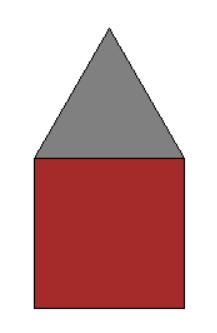
Your Task⌗
Ask the user for:
- Wall size → use
int() - Wall color
Then:
Print a line before drawing:
Drawing a house with wall size: 120 and color: blue(Use commas inside print)
Draw the house using:
p.begin_fill()p.end_fill()p.fillcolor()p.forward()p.left()p.goto()- etc.
After the drawing is complete, print:
House construction complete!
Use the Turtle boilerplate code provided below.
Boilerplate Code⌗
import turtle as trtl

p = trtl.Turtle()
p.speed(0)

# --- ENTER YOUR CODE HERE ---
# (Write your drawing code in this section)


# --------------------------------------------------------------
# (Stop writing code above this line)

wn = trtl.Screen()
wn.mainloop()
Independent Activity — Rocket Launcher⌗
Create a new Python file in VS Code named:turtle_class10_independent.py
Rocket Image⌗
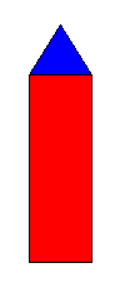
Your Task⌗
Ask the user for:
- Rocket height → use
int() - Body color
- Fin color
Then:
Print launch messages:
Initializing Launch Sequence...
Rocket Height Set To: 100 units
3... 2... 1... IGNITION!
Draw the rocket using:
p.begin_fill()p.end_fill()p.fillcolor()p.circle()p.goto()penup()pendown()- etc.
After drawing, print:
Rocket successfully deployed on canvas!
Use the Turtle boilerplate code provided earlier.
Submission Instructions⌗
Submit your work in Google Classroom by:
- Creating a Google Doc
- Pasting your code into the document
- Adding a screenshot of the output window showing your drawing
- Turn in the Google Doc to the assignment titled In‑Class Exercise 10