Lecture 7 — Turtle Shapes, Stamps & Sizes
Lecture 7 — Turtle Shapes, Stamps & Sizes⌗
Instructor: Laksh Budhrani
Review / Recap⌗
Commands You Already Know⌗
| Command | Meaning (Simple) |
|---|---|
p.forward(steps) | Move the turtle straight ahead |
p.backward(steps) | Move the turtle straight backward |
p.left(angle) | Turn the turtle left |
p.right(angle) | Turn the turtle right |
p.penup() | Move without drawing |
p.pendown() | Start drawing again |
p.pencolor(color) | Change the pen color |
p.pensize(size) | Change the line thickness |
p.hideturtle() | Hide the turtle icon |
p.showturtle() | Show the turtle icon again |
p.goto(x, y) | Teleport the turtle to a coordinate |
p.setheading(angle) | Point the turtle in a specific direction |
p.circle(r) | Draw a full circle |
p.circle(r, a) | Draw an arc |
p.circle(r, a, s) | Draw a polygon circle |
p.begin_fill() | Start filling a shape |
p.end_fill() | Finish filling a shape |
p.fillcolor() | Set fill color |
Objectives⌗
- Learn how to change turtle shape
- Learn how to stamp turtle shapes
- Learn how to change turtle size using
turtlesize() - Learn how to change turtle speed
- Learn how to draw dots using
dot()
Objective 1 — shape()⌗
Simple Definition⌗
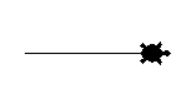
shape()— Change the turtle’s appearance.
Available Shapes⌗
"arrow""turtle""circle""square""triangle""classic"
Example⌗
p.shape("turtle")
p.forward(100)
Objective 2 — stamp()⌗
Simple Definition⌗
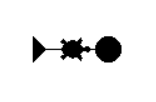
stamp()— Leave a copy of the turtle shape on the screen.
Example⌗
p.shape("arrow")
p.stamp()
p.forward(30)
p.shape("turtle")
p.stamp()
p.forward(30)
p.shape("circle")
p.stamp()
Objective 3 — turtlesize()⌗
Simple Definition⌗
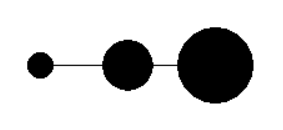
turtlesize()— Make the turtle icon bigger or smaller.
Example⌗
p.shape("circle")
p.turtlesize(1)
p.stamp()
p.forward(70)
p.turtlesize(2)
p.stamp()
p.forward(70)
p.turtlesize(3)
p.stamp()
Objective 4 — speed()⌗
Simple Definition⌗
speed()— Change how fast the turtle moves.
Speed Levels (Short & Simple)⌗
speed(0)→ fastest (no animation)speed(1)→ slowestspeed(3)→ slowspeed(6)→ normalspeed(10)→ fast
Example⌗
p.speed(0) # fastest drawing
Objective 5 — dot()⌗
Simple Definition⌗
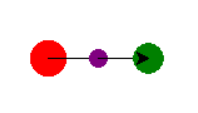
dot(size, color)— Draw a filled circle (dot).
Example⌗
p.dot(30, "red")
p.forward(40)
p.dot(15, "purple")
p.forward(40)
p.dot(25, "green")
Solar System Activity (Guided)⌗
Create a new Python file in VS Code named:turtle_class7.py
Solar System Image⌗

Explain in Plain English⌗
Write a short explanation (3–5 sentences) describing how you think we can draw this solar system using:
shape()turtlesize()stamp()speed()dot()pencolor()fillcolor()goto()penup()pendown()
Explain the steps in simple English, as if you are telling a friend how to draw it.
Boilerplate Code⌗
import turtle as trtl

p = trtl.Turtle()
p.speed(0)

# --- ENTER YOUR CODE HERE ---
# (Use shape, turtlesize, stamp, speed, and dot to draw the solar system)


# --------------------------------------------------------------
# (Stop writing code above this line)

wn = trtl.Screen()
wn.mainloop()
Notes⌗
- Use
shape("triangle")andstamp()for stars - Use
dot()for planets - Use
turtlesize()to make stars bigger - Use
goto()to place each planet - Use
bgcolor()to make space look nice - Use
hideturtle()at the end for a clean final look
Independent Activity — Ladybug Drawing⌗
Ladybug Image⌗
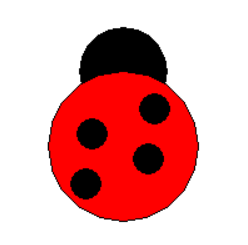
Your Task⌗
Look at the image above and draw it independently using:
shape()turtlesize()stamp()dot()fillcolor()pencolor()goto(x, y)penup()pendown()hideturtle()
Use the Turtle boilerplate code provided earlier in this lecture.
Create Your Own File⌗
Create a new Python file in VS Code named:
turtle_class7_independent.py
Inside that file, use the boilerplate and write your ladybug code in the section marked:
# --- ENTER YOUR CODE HERE ---
Submission Instructions⌗
Submit your work in Google Classroom by:
- Creating a Google Doc
- Pasting your code into the document
- Adding a screenshot of the output window showing your drawing
- Turn in the Google Doc to the assignment titled In‑Class Exercise 7