Assignment 2B — Advanced Controls & Submission Form Project
Assignment 2B — Advanced Controls & Submission Form Project⌗
Instructor: Laksh Budhrani
Quick Recall: HTML Form Tags & Attributes Covered So Far⌗
Up until now, we have learned how to structure complete forms, handle text, choice inputs, dates, colors, file uploads, numeric ranges, and form submission buttons! Here is the complete list of all form tags and attributes we have mastered so far:
| Tag / Attribute | Type | Purpose | Example |
|---|---|---|---|
<form> | Paired Tag | Main wrapper container for all form controls | <form>...</form> |
<label> | Paired Tag | Displays text labeling a specific input field | <label>Name:</label> |
<input> | Unpaired Tag | Creates an interactive input field | <input type="text"> |
type="text" | Attribute Value | Creates a standard single-line text box | <input type="text"> |
type="email" | Attribute Value | Creates an input box tuned for email addresses | <input type="email"> |
type="password" | Attribute Value | Creates a masked text box that hides typed characters | <input type="password"> |
type="radio" | Attribute Value | Creates a single-choice round button | <input type="radio"> |
type="checkbox" | Attribute Value | Creates a multi-choice square box | <input type="checkbox"> |
type="date" | Attribute Value | Calendar date selector | <input type="date"> |
type="time" | Attribute Value | Clock time selector | <input type="time"> |
type="color" | Attribute Value | Native visual color palette picker | <input type="color"> |
type="file" | Attribute Value | File upload selector button | <input type="file"> |
type="number" | Attribute Value | Text box optimized for numeric input | <input type="number"> |
type="range" | Attribute Value | Visual slider bar control | <input type="range"> |
type="submit" | Attribute Value | Button that sends form data to the server | <input type="submit"> |
type="reset" | Attribute Value | Button that clears all inputs back to default | <input type="reset"> |
name="..." | Attribute | Column header/label for saving field data in the backend | name="user_name" |
value="..." | Attribute | Text stored or pre-filled inside the control | value="Peter" |
min="..." / max="..." | Attribute | Sets minimum and maximum allowed numeric bounds | min="1" max="10" |
step="..." | Attribute | Sets increment/decrement interval size | step="5" |
action="..." | Attribute | Specifies server URL destination for form submission | <form action="/submit"> |
<select> | Paired Tag | Main wrapper container for a dropdown menu | <select name="location"> |
<option> | Paired Tag | Single item/choice inside a dropdown list | <option value="online">Online</option> |
<textarea> | Paired Tag | Creates a multi-line text input box | <textarea name="msg"></textarea> |
rows="..." | Attribute | Sets the height of a text area in lines | rows="4" |
cols="..." | Attribute | Sets the width of a text area in characters | cols="30" |
Project Prompt: High School Football Game Ticket Portal⌗
Imagine you are organizing tickets for the big Friday night Homecoming Football Game! You need to build an online registration portal where students can request stadium tickets, pick arrival times, upload their student IDs, choose face paint team colors, and select preferred seating sections.
Your task is to build an interactive, single-page event booking form utilizing the specialized input types and submission features learned in Lectures 12 and 13!
Assignment Objectives⌗
- Build a fully structured HTML page using proper document setup (
<!DOCTYPE html>,<html>,<head>,<body>). - Implement form action routing using the
actionattribute on the<form>container. - Integrate specialized input controls:
type="date",type="time",type="color", andtype="file". - Collect numeric and slider data using
type="number"andtype="range"configured withmin,max, andstepattributes. - Provide clear action controls using
type="submit"andtype="reset"buttons.
Assignment Requirements Checklist⌗
Your submission file assignment2b.html must contain ALL of the following requirements:
- 1. Page & Form Action Setup: Set up a clean HTML structure with a main title and ONE main
<form>wrapper configured with anactionattribute (e.g.,action="https://example.com/submit_tickets"). - 2. Basic Contact Info: Include labeled text/email inputs for student name and email address.
- 3. Game Schedule Controls:
- Date input (
type="date") for selecting the game date. - Time input (
type="time") for choosing tailgate/stadium arrival time.
- Date input (
- 4. Customization & Student Verification:
- Color input (
type="color") to pick a fan section face paint / shirt color. - File upload input (
type="file") to upload a current Student ID badge.
- Color input (
- 5. Numeric Quantity & Seating Sliders:
- Number input (
type="number") withminandmaxattributes to select ticket quantity (e.g., 1 to 5 tickets). - Range input (
type="range") withmin,max, andstepattributes (e.g., selecting seating distance from 50-yard line).
- Number input (
- 6. Submission & Reset Buttons:
- A submit button (
type="submit") with custom text using thevalueattribute. - A reset button (
type="reset") to allow students to clear their entries.
- A submit button (
Project Setup & Starter Template⌗
Instructions:⌗
- Open VS Code.
- Open your course workspace folder.
- Create a new file named
assignment2b.html. - Copy and paste the template below into
assignment2b.htmland write your HTML code inside the body!
<!DOCTYPE html>
<html>

<head>
    <title>Assignment 2B — Football Game Tickets</title>
</head>

<body>
	<!-- START WRITING HERE -->


	<!-- STOP WRITING HERE -->
</body>

</html>
Expected Browser Output⌗
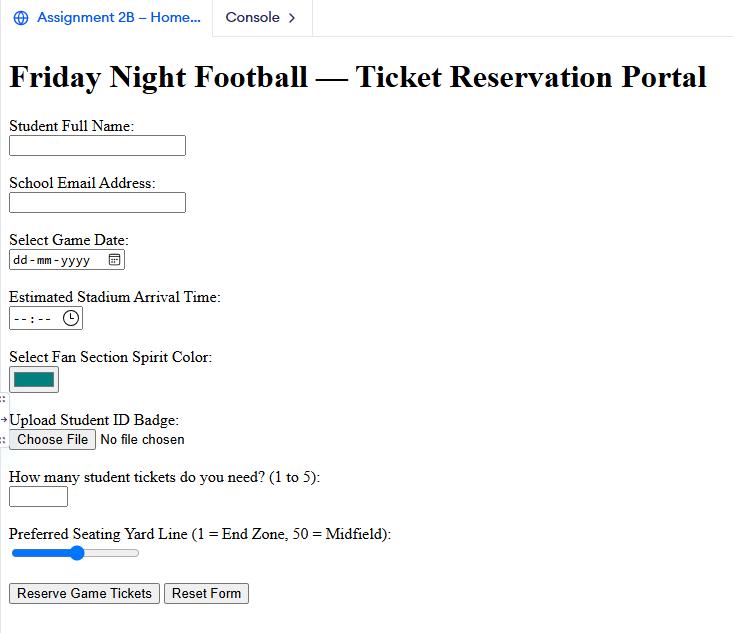
Here is an example preview. Your work should look similar to this when opened in a web browser:
Submission Instructions⌗
Submit your finished assignment in Google Classroom under Assignment 2B by following these steps:
- Copy your full HTML code from
assignment2b.html. - Open your course Google Doc and paste your code under the Assignment 2B header.
- Take a full-page screenshot of your rendered page in the browser and paste it directly below your code.
- Click Turn In on Google Classroom!