Lecture 17 — CSS Box Model
Lecture 17 — CSS Box Model⌗
Instructor: Laksh Budhrani
Objectives⌗
By the end of this lesson, you will be able to:
- Understand the CSS Box Model.
- Differentiate between
border,padding, andmargin. - Use these properties to create and organize webpage elements.
- Center an element horizontally using
margin: auto.
Quick Recall: Previous Lectures Review⌗
Let’s quickly recall what we have learned so far!
| Tag / Property | What It Does |
|---|---|
<div> | Groups larger sections of content |
<span> | Groups a small part of text |
background-color | Changes the background color |
font-family | Changes the font |
color | Changes the text color |
font-size | Changes the text size |
text-align | Aligns text horizontally |
text-decoration | Adds or removes decorative lines |
width | Controls the width of an element |
height | Controls the height of an element |
Objective 1 — Understanding the CSS Box Model⌗
Every HTML element is treated as a rectangular box by the browser.
The CSS Box Model describes how these boxes are structured and how much space they occupy on a webpage.
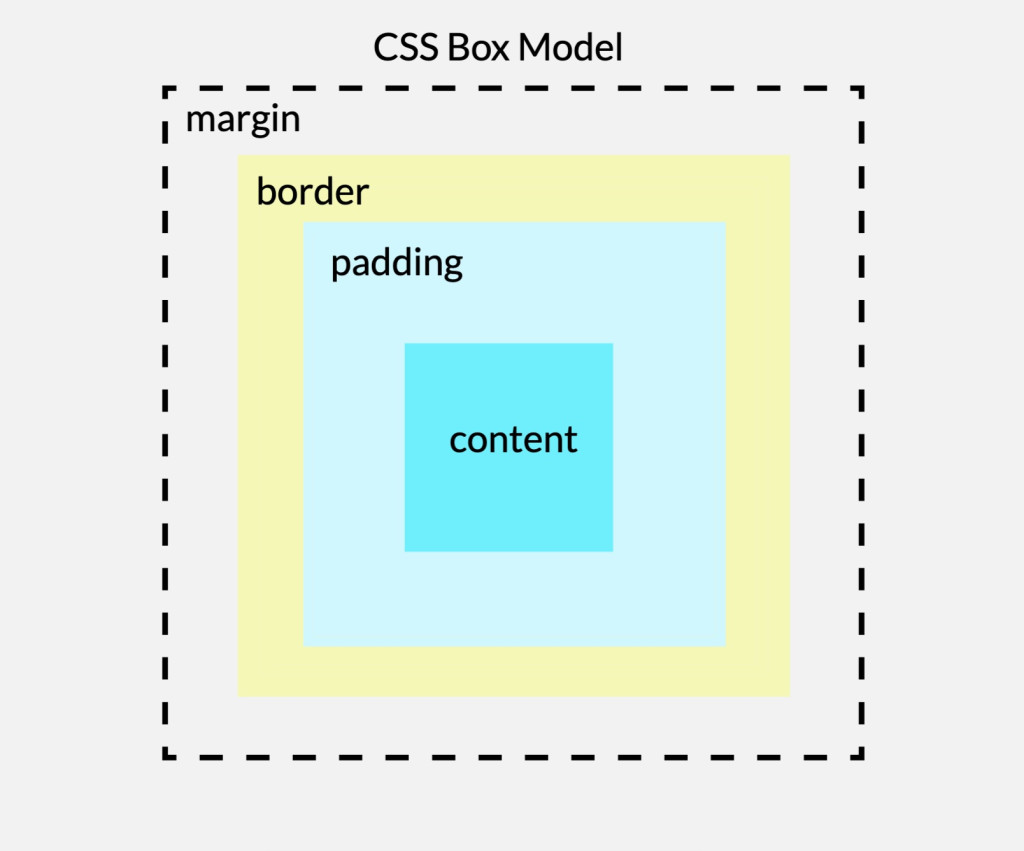
The Box Model consists of four parts:
- Content: The actual text, image, or other content inside an element.
- Padding: The space between the content and the border.
- Border: The line surrounding the content and padding.
- Margin: The space outside the border, separating an element from other elements.
Objective 2 — CSS Box Model Properties⌗
a) border⌗
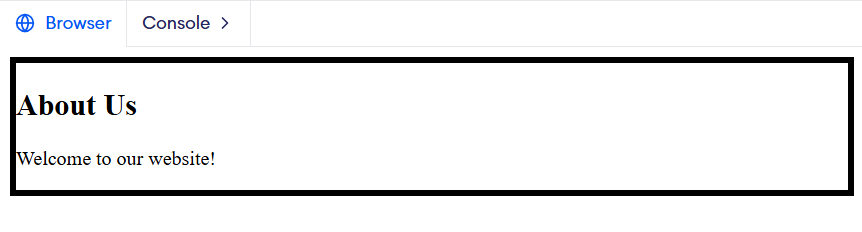
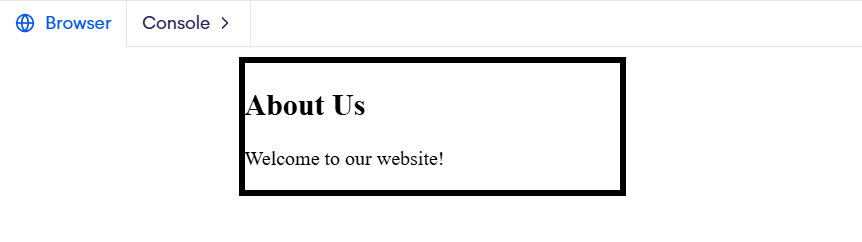
What it does: Adds a visible line around an HTML element.
Basic Values: Border thickness (1px, 2px, 3px), style (solid, dashed, dotted), and color (black, red, blue, etc.).
Example:
div {
    border: 5px solid black;
}
Here:
2px= Thickness of the border.solid= Style of the border.black= Color of the border.
b) padding⌗
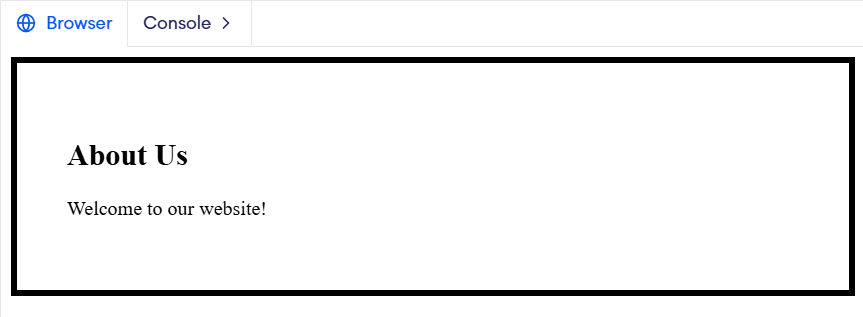
What it does: Adds space between the content and the border. It creates breathing room inside the element.
Basic Values: 10px, 20px, 30px, 40px, etc.
Example:
div {
    padding: 40px;
}
Here, 40px of space is added between the content and the border on all four sides.
c) margin⌗
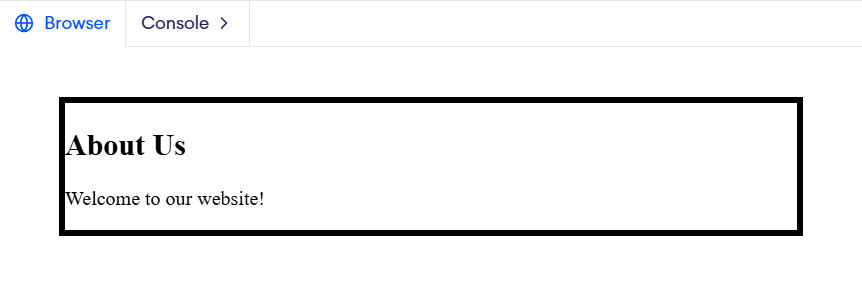
What it does: Adds space outside the border of an element. It creates distance between one element and another.
Basic Values: 10px, 20px, 30px, 40px, auto, etc.
Example:
div {
    margin: 40px;
}
Here, 40px of space is added outside the border on all four sides.
Centering an Element Using Margin⌗
We can use margin: 0 auto; to center an element horizontally.
div {
    width: 300px;
    margin: 0 auto;
}
Here:
0= No extra margin at the top and bottom.auto= Automatically distributes the left and right margins equally.
Remember: The element needs a specified width for this centering method to work as expected.
Guided Activity — JP2 Happenings!⌗
The Story⌗
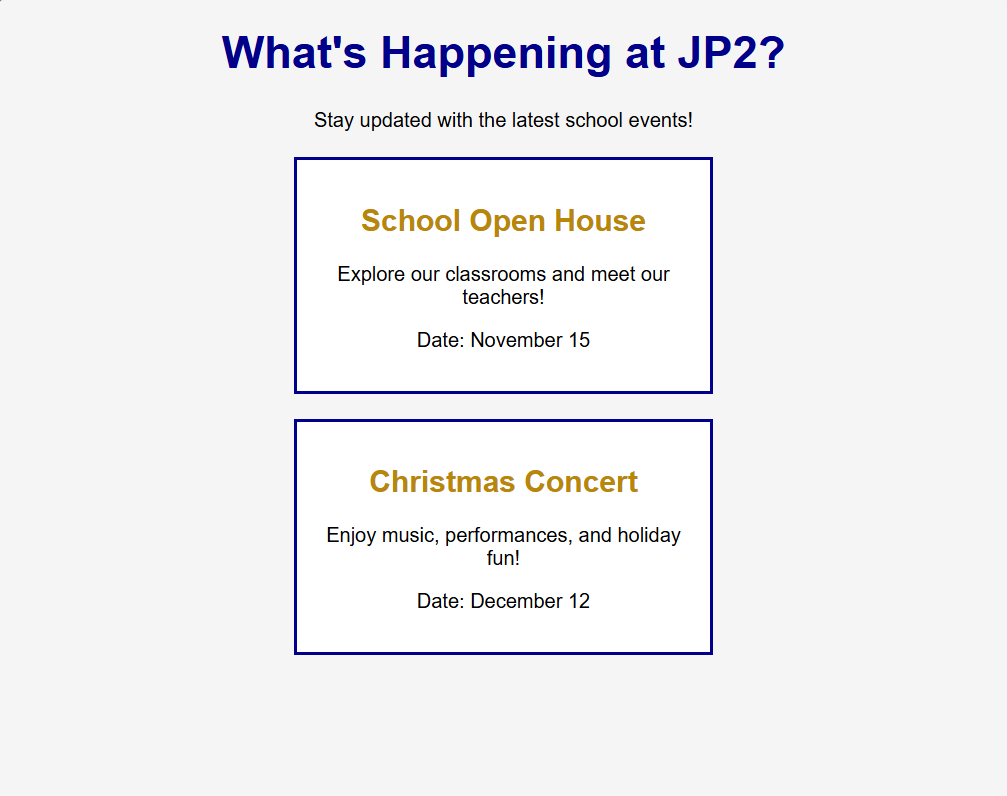
Sahil wants to create a JP2 Happenings section on the school website to highlight upcoming school events.
Let’s help him showcase the School Open House and Christmas Concert!
HTML Starter Template⌗
Open your existing jp2_website.html file.
<!DOCTYPE html>
<html>

<head>
    <title>JP2 Happenings</title>
</head>

<body>

</body>

</html>
Your Task⌗
Create two event cards using <div> containers and style them using the Box Model properties!
Independent Activity — Expand Your Favorite Website!⌗
Open your existing favorite_website.html file.
Your Task⌗
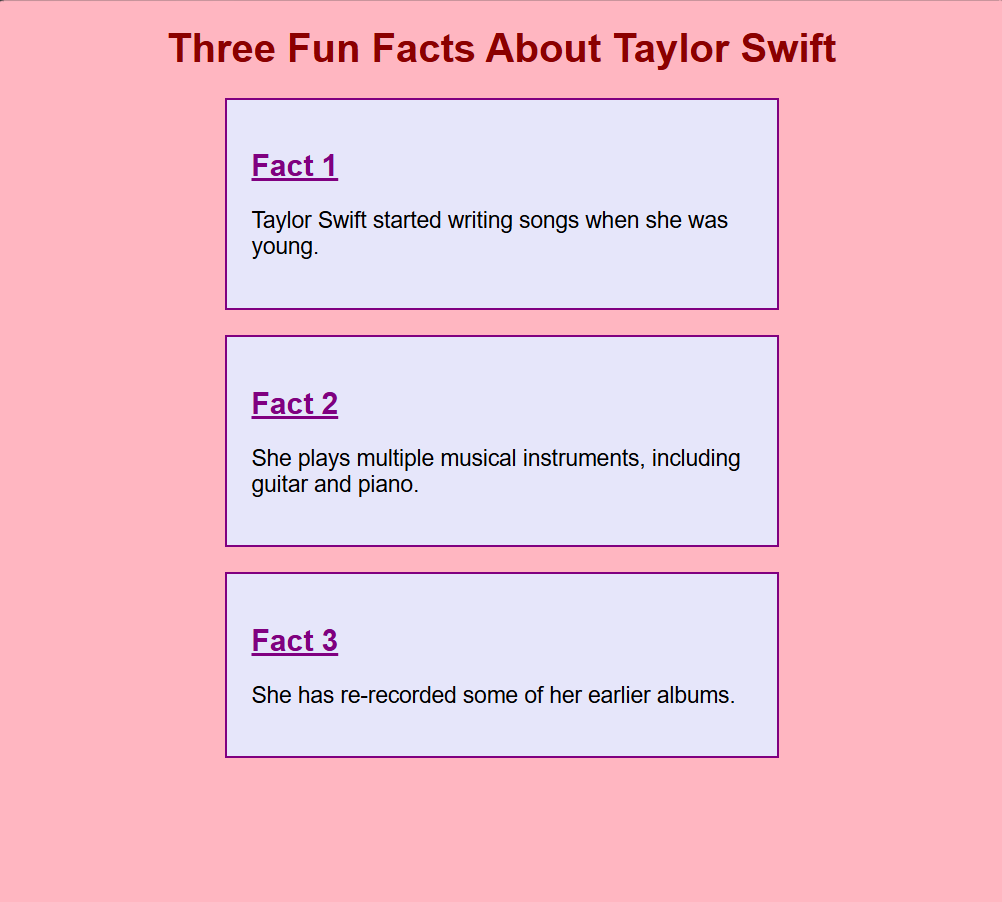
Create a Fun Facts section featuring three interesting facts about your chosen person, singer, actor, movie, TV series, or sports team.
Use the Box Model properties to style your section.
CSS Requirements:
- Use
borderto create an outline around your section. - Use
paddingto create space inside your section. - Use
marginto create space outside your section. - Use
margin: 0 auto;to center your section horizontally.
Summary: CSS Box Model Properties Learned Today⌗
| Property | What It Does |
|---|---|
border | Adds an outline around an element |
padding | Adds space inside the border |
margin | Adds space outside the border |