Lecture 5 — HTML Lists: Unordered, Ordered & Nested Lists
Lecture 5 — HTML Lists: Unordered, Ordered & Nested Lists⌗
Instructor: Laksh Budhrani
Quick Recall: Lectures 1–4 Review⌗
Before we learn how to create lists, let’s review all the tags and attributes we’ve mastered so far!
| Tag | Associated Attributes | Type | Purpose | Example |
|---|---|---|---|---|
<h1> – <h6> | None | Paired | Headings of different sizes | <h1>Heading</h1> |
<p> | None | Paired | Text paragraph block | <p>Paragraph</p> |
<b>, <i>, <u> | None | Paired | Bold, Italics, Underline | <b>Bold</b>, <i>Italic</i>, <u>Underline</u> |
<mark>, <s> | None | Paired | Highlight, Strikethrough | <mark>Highlight</mark>, <s>Strike</s> |
<sup>, <sub> | None | Paired | Superscript, Subscript | 1<sup>st</sup>, H<sub>2</sub>O |
<!-- --> | None | Special | Hidden code notes/comments | <!-- Note --> |
<hr>, <br> | None | Unpaired | Horizontal rule divider, Line break | <hr>, <br> |
<img> | src, alt, width, height | Unpaired | Displays an image | <img src="pic.jpg" alt="Pic" width="200"> |
<a> | href, target (_blank / _self) | Paired | Creates clickable hyperlink | <a href="https://..." target="_blank">Link</a> |
Class Check-In: Does anyone have questions about images, links, or attributes before we learn about lists?
The Story Continues…⌗
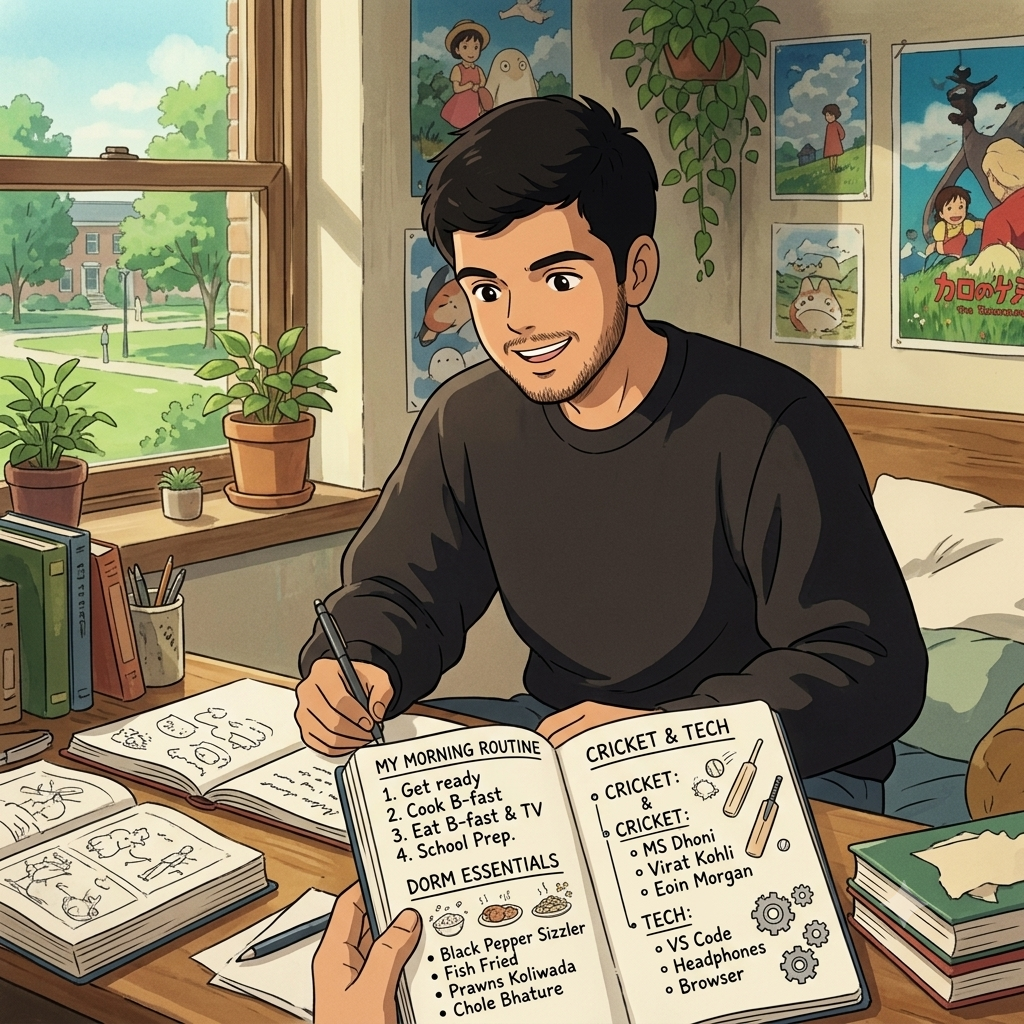
Sahil’s Week 5 Update!
Sahil’s website is looking super sleek with his photos and university links! But now that he’s settling into college life at UCI, he wants to track his daily routines on his website.
He has a Dorm Packing Checklist (where order doesn’t matter) and a Daily Morning Routine (where the step-by-step order is super important!). Plus, under his packing list, he wants sub-categories like “Tech” and “Snacks”. Manually typing numbers or dashes in
<p>tags gets messy fast. Sahil needs our help using HTML Lists inside a brand-new file:sahil_day5.html!
Sahil’s Request for Today⌗
“Hey! I need to organize my college life into actual clean lists instead of long paragraph lines.”
“Here is what I need you to help me build in
sahil_day5.html:”
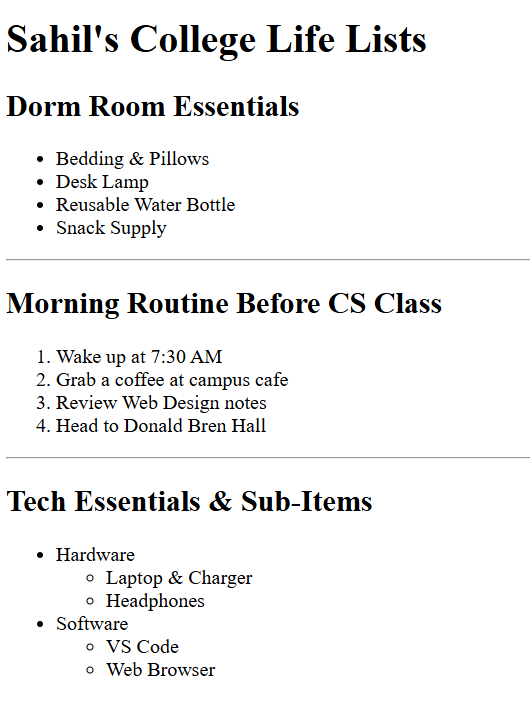
- Dorm Supplies List (Unordered): Bulleted list of items I need for my dorm room where order doesn’t matter.
- Morning Class Routine (Ordered): Numbered list of my step-by-step morning routine before my 9:00 AM CS class.
- Organized Categories (Nested): Group my supplies under main categories with sub-bullet points!
Objectives⌗
- Create bulleted lists using Unordered Lists (
<ul>) and List Items (<li>) - Create numbered lists using Ordered Lists (
<ol>) and List Items (<li>) - Combine lists to build Nested Lists (lists inside lists)
Objective 1 — Unordered Lists (<ul>)⌗
Simple Definition⌗
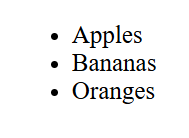
An Unordered List creates a bullet-pointed list. Use this when the sequence or order of items does not matter (e.g., shopping lists, hobbies, ingredients).
<ul>stands for Unordered List (creates the list container).<li>stands for List Item (wraps around every single item in the list).
<!-- Generic Example -->
<ul>
    <li>Apples</li>
    <li>Bananas</li>
    <li>Oranges</li>
</ul>
Objective 2 — Ordered Lists (<ol>)⌗
Simple Definition⌗
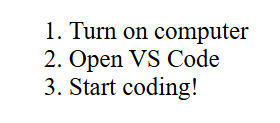
An Ordered List creates a numbered list (1, 2, 3…). Use this when the sequence or step-by-step order does matter (e.g., recipes, top 3 rankings, daily routines).
<ol>stands for Ordered List (creates the numbered container).<li>stands for List Item (wraps around every single item in the list).
<!-- Generic Example -->
<ol>
    <li>Turn on computer</li>
    <li>Open VS Code</li>
    <li>Start coding!</li>
</ol>
Important Rule:
<li>tags MUST always be placed inside either a<ul>or an<ol>tag! Never use<li>by itself.
Objective 3 — Nested Lists (Lists Inside Lists)⌗
Simple Definition⌗
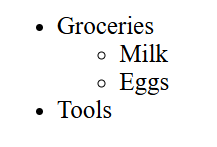
A Nested List is a list placed directly inside another list item. This creates sub-bullets or indented sub-categories!
How it works:⌗
To place a sub-list under an item, put the inner <ul> or <ol> inside the parent <li> before it closes.
<!-- Generic Example -->
<ul>
    <li>Groceries
        <ul>
            <li>Milk</li>
            <li>Eggs</li>
        </ul>
    </li>
    <li>Tools</li>
</ul>
Guided Activity — Building Sahil’s Routine & Packing Page⌗
PART 1 — Project Setup⌗
- Open VS Code.
- Go to File → Open Folder and select your
Sahil_Projectfolder. - Create a new file named:
sahil_day5.html.
PART 2 — Expected Browser Output⌗
Here is what Sahil’s completed lists page will look like once we write the HTML together:
PART 3 — Starter Code (We will write the content together live!)⌗
Paste this starter boilerplate into sahil_day5.html. We will fill in the <body> together in class!
<!DOCTYPE html>
<html>

<head>
    <title>Sahil's Routines & Lists</title>
</head>

<body>
	<!-- START WRITING HERE -->


	<!-- STOP WRITING HERE -->
</body>

</html>
Independent Activity — My Ultimate Lists Page!⌗
Now it’s your turn! Create a brand-new file for your portfolio to display your favorite activities, daily schedule, and organized hobbies using all three list types.
Instructions:⌗
- Open your
Portfoliofolder in VS Code. - Create a new file named
portfolio_day5.html. - Copy the starter template above into your file and build your page using
<ul>,<ol>, and nested lists.
Your Portfolio Prompt⌗
Your page must include the following 4 requirements:
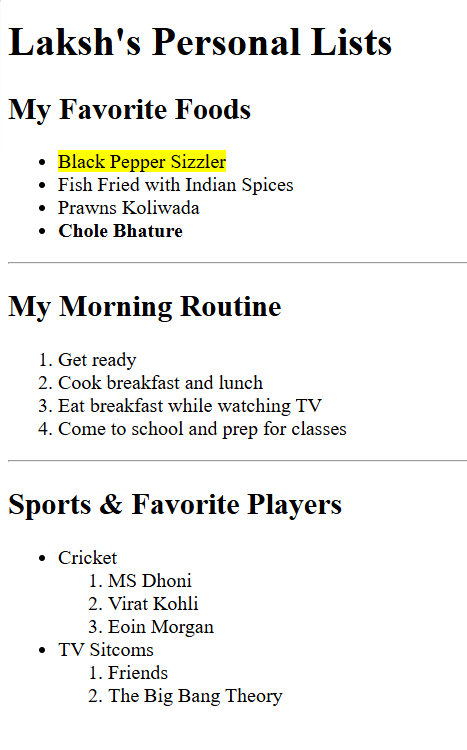
- Unordered List (
<ul>): Create a bulleted list of your Top 4 Hobbies or Favorite Foods. - Ordered List (
<ol>): Create a numbered list of your 3 Steps in Your Morning/Afternoon/Evening Routine. - Nested List: Create a list with at least 1 sub-category (e.g., Favorite Sports ➜ Team/Player, or Favorite Music ➜ Artist/Song).
Example Solution⌗
Submission Instructions⌗
Submit your work in Google Classroom under In‑Class Exercise 5 by:
- Opening your Google Doc from previous lectures.
- Pasting your HTML code from both
sahil_day5.htmlandportfolio_day5.html. - Adding screenshots of both rendered pages from your browser.
- Turning in the document!
Summary: New Tags Learned Today⌗
| Tag | Associated Attributes | Type | Purpose | Example |
|---|---|---|---|---|
<ul> | None | Paired | Creates a bullet-pointed list container | <ul>...</ul> |
<ol> | None | Paired | Creates a numbered list container (1, 2, 3…) | <ol>...</ol> |
<li> | None | Paired | Defines an individual item inside a <ul> or <ol> | <li>Item</li> |